
The official getting-started guide
How to use LivePost
Start with the photos already on your phone. LivePost keeps each moment together, prepares a post you review before anything is shared, and lets you ask your own memories anything.
Chapter 1
Capture a moment from photos you already have
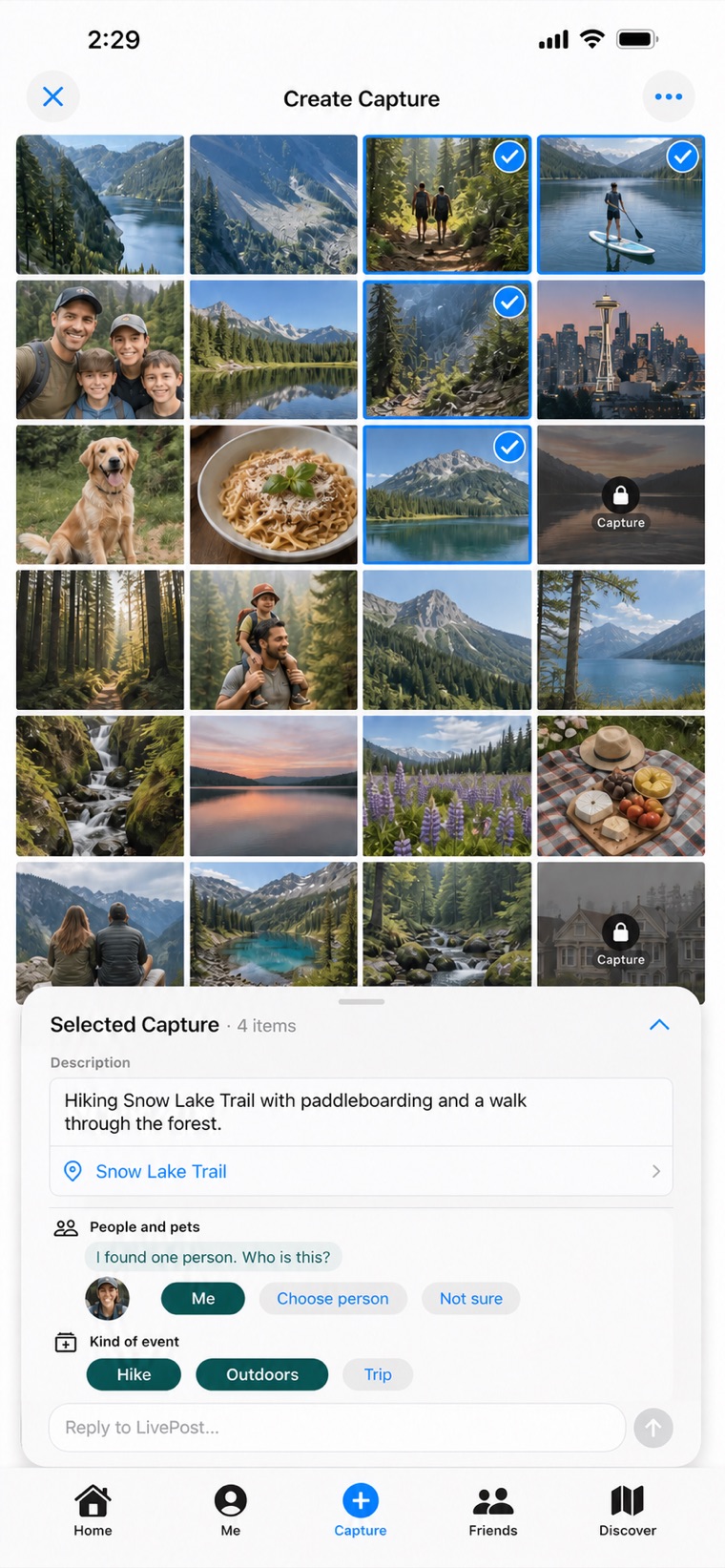
Nothing has to be filmed or written for LivePost. Open the library on your phone, pick what belongs to one experience, and it becomes a Capture that holds those photos, videos, place and date together. Each Capture starts as its own entry in Moments; when several of them belong to the same experience, you can merge them into one.
-
 1
1Pick what belongs together
Choose the photos and videos from a single experience — a hike, a birthday, an ordinary afternoon. A description appears as you select, and LivePost asks only about what it cannot know: who is in the picture, what kind of event this was.
-
 2
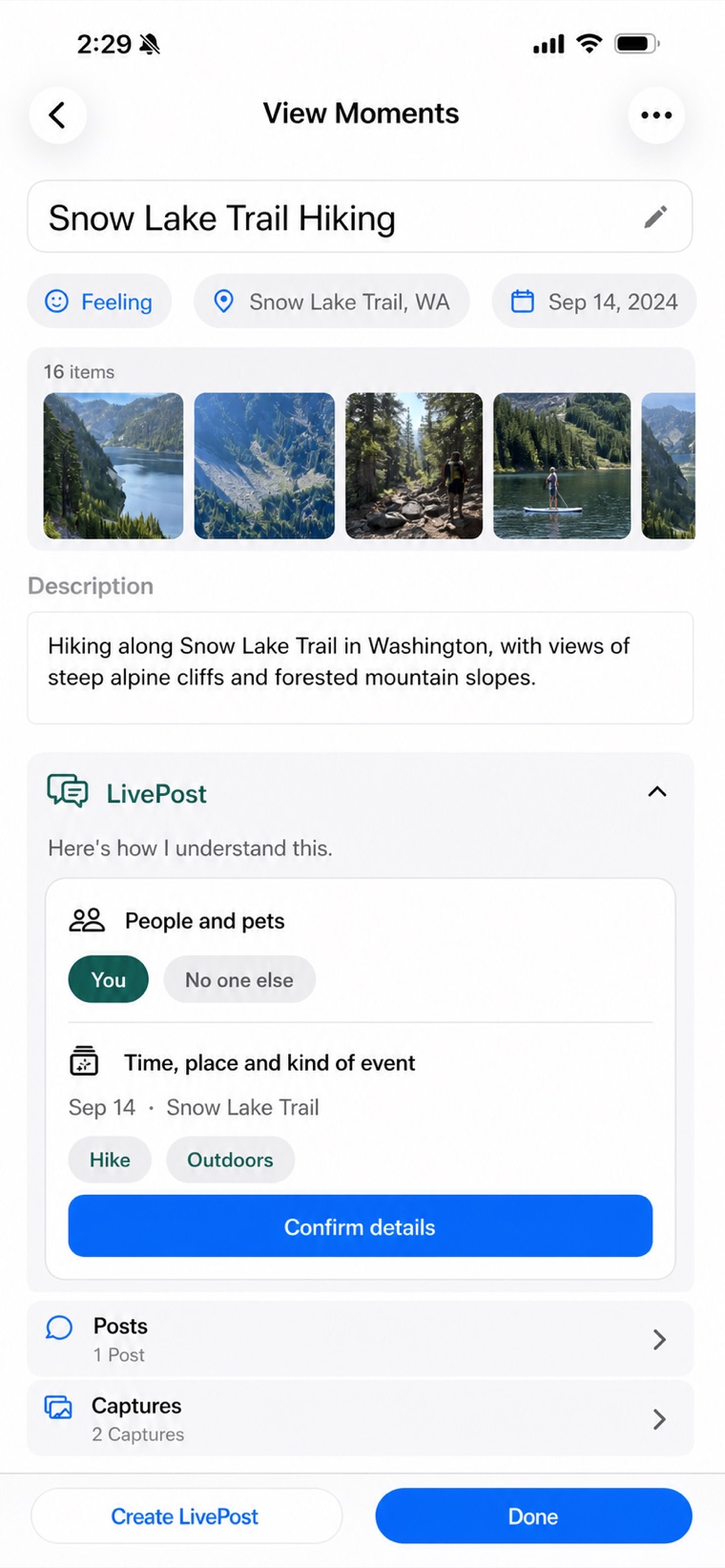
2Review what LivePost understood
Open it and everything sits in one place: the media, the description, the place and the date. LivePost lists what it worked out — the people, the time, the kind of event — and you confirm it or correct it. All of it stays private.
Chapter 2
Home turns a moment into a post
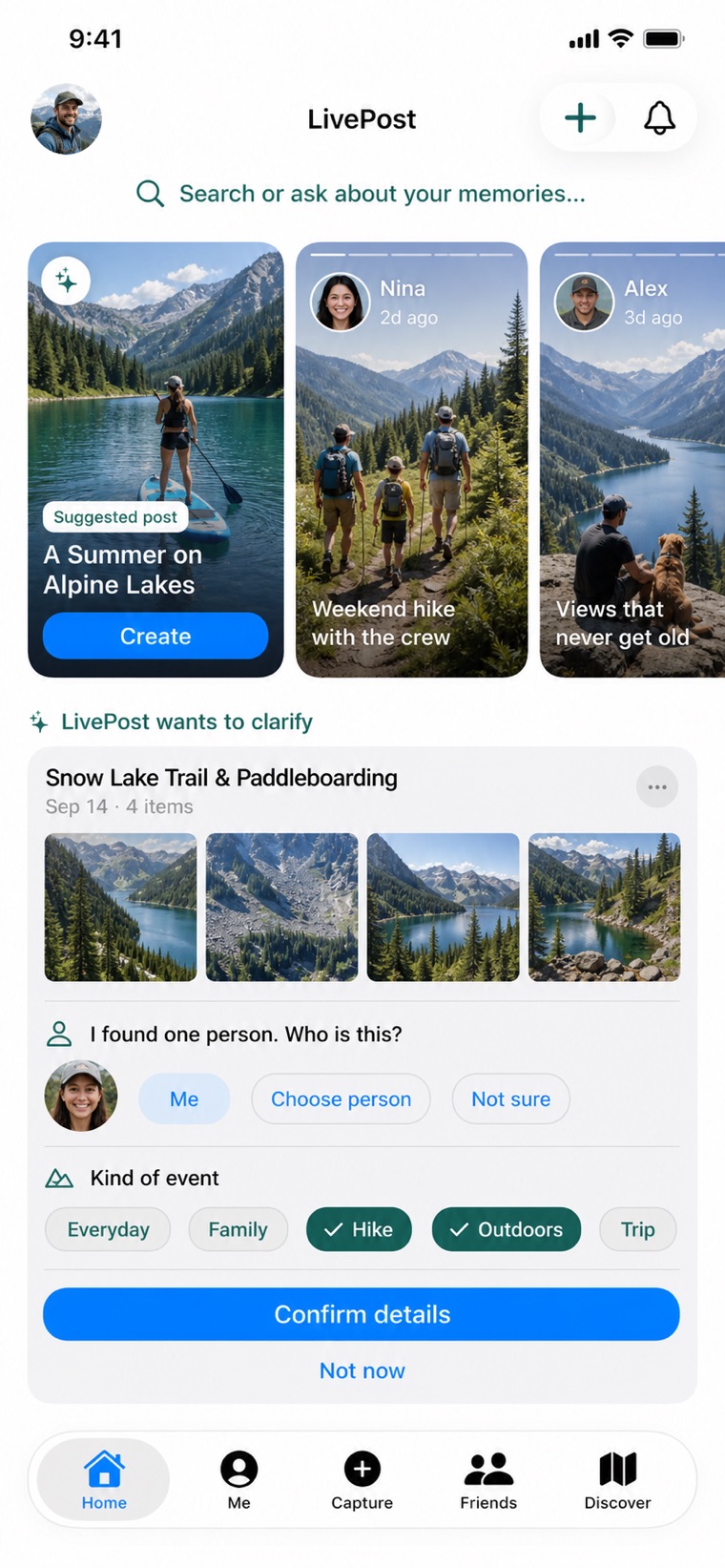
You never have to remember to post anything. Home shows what is ready to become a story, next to the people you follow and the occasional question LivePost genuinely needs answered.
-
3
Home brings it to you
A suggested post sits at the front of Home under a title LivePost proposed. Below it, a short clarification when something is unclear — who was there, what kind of event this was. Answer with a tap, or choose Not now.
-
 4
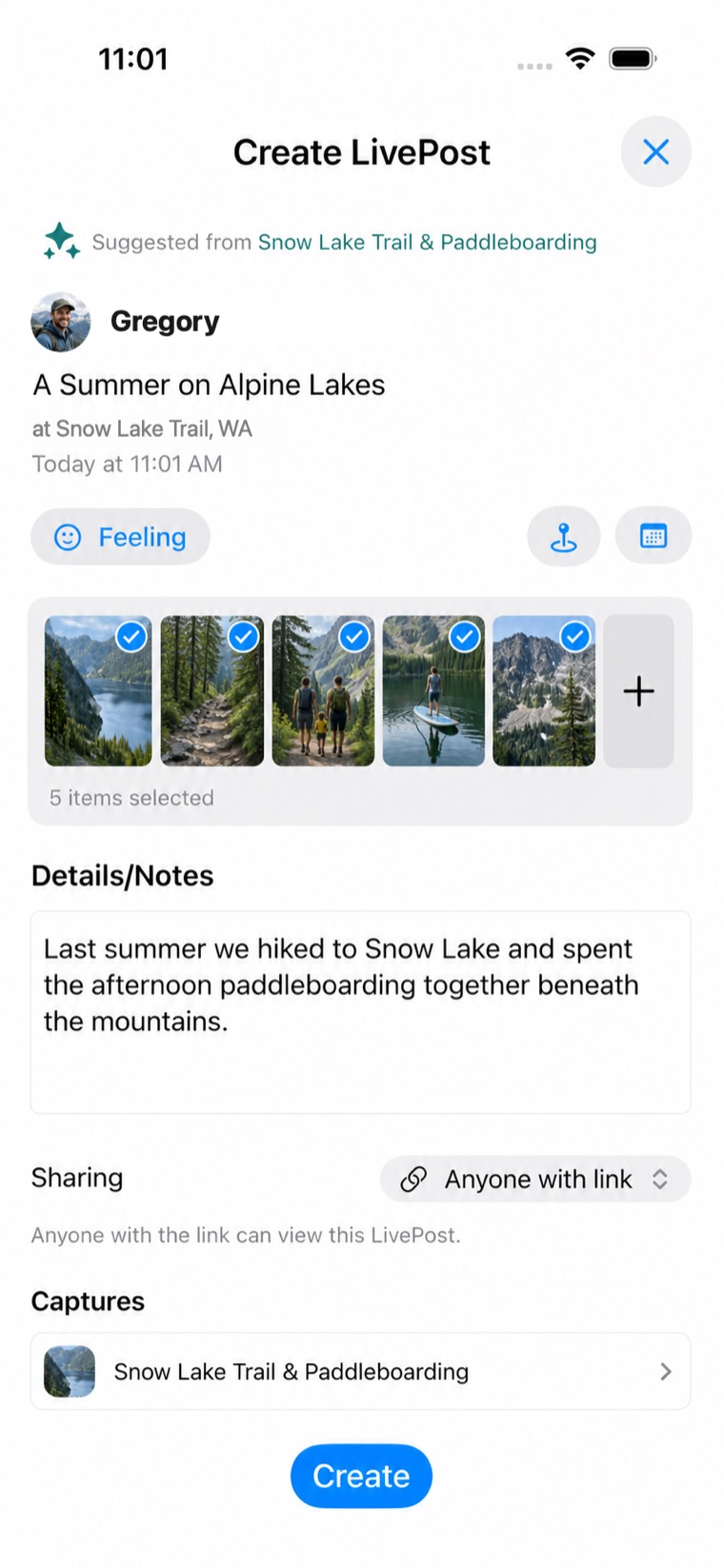
4Nothing is shared without you
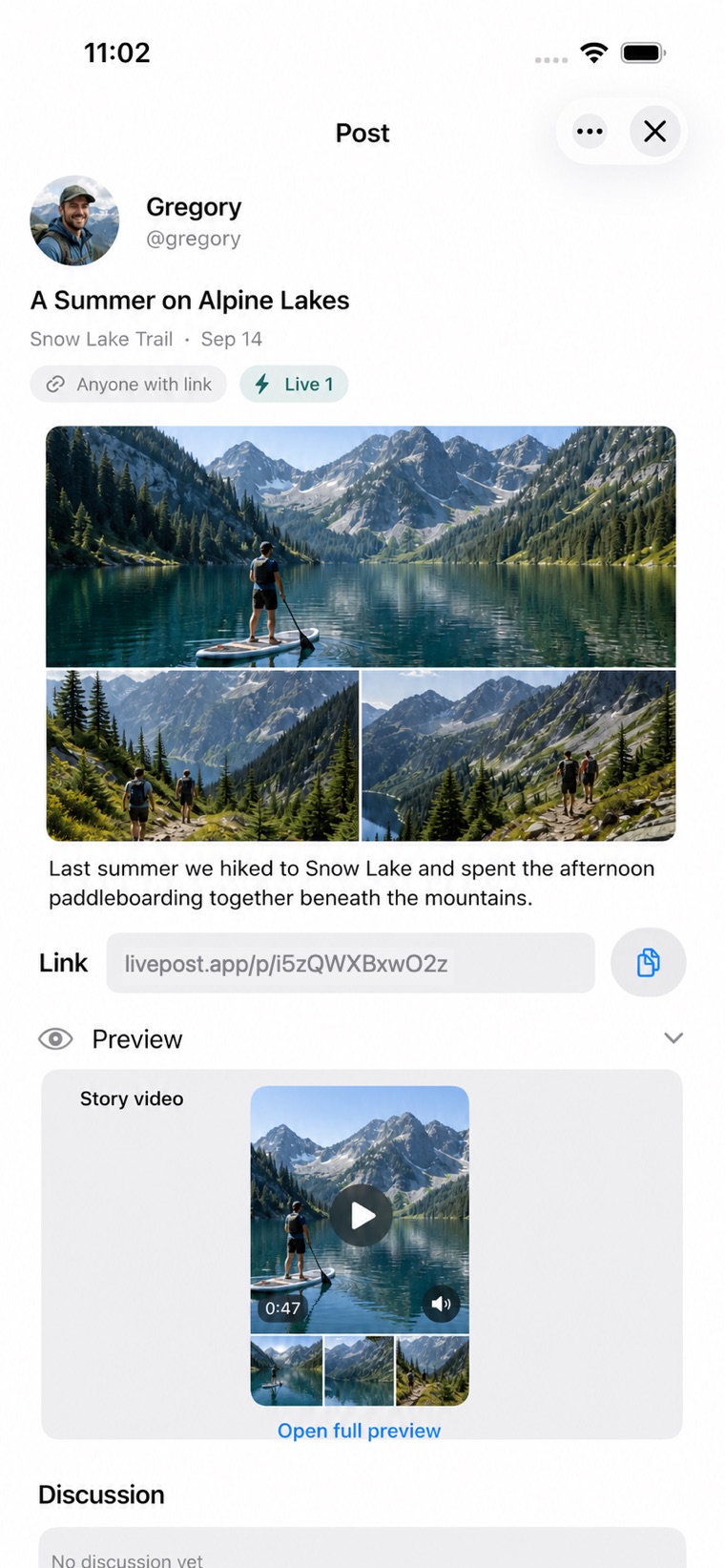
The suggestion opens as a finished draft: title, media, description, and who may open the link. Change any of it. The post exists only once you create it — LivePost never publishes on its own.
Chapter 3
The post never leaves the memory behind
A published post stays attached to what it came from, so the private original and the shared version remain one thread instead of two copies drifting apart.
-
 5
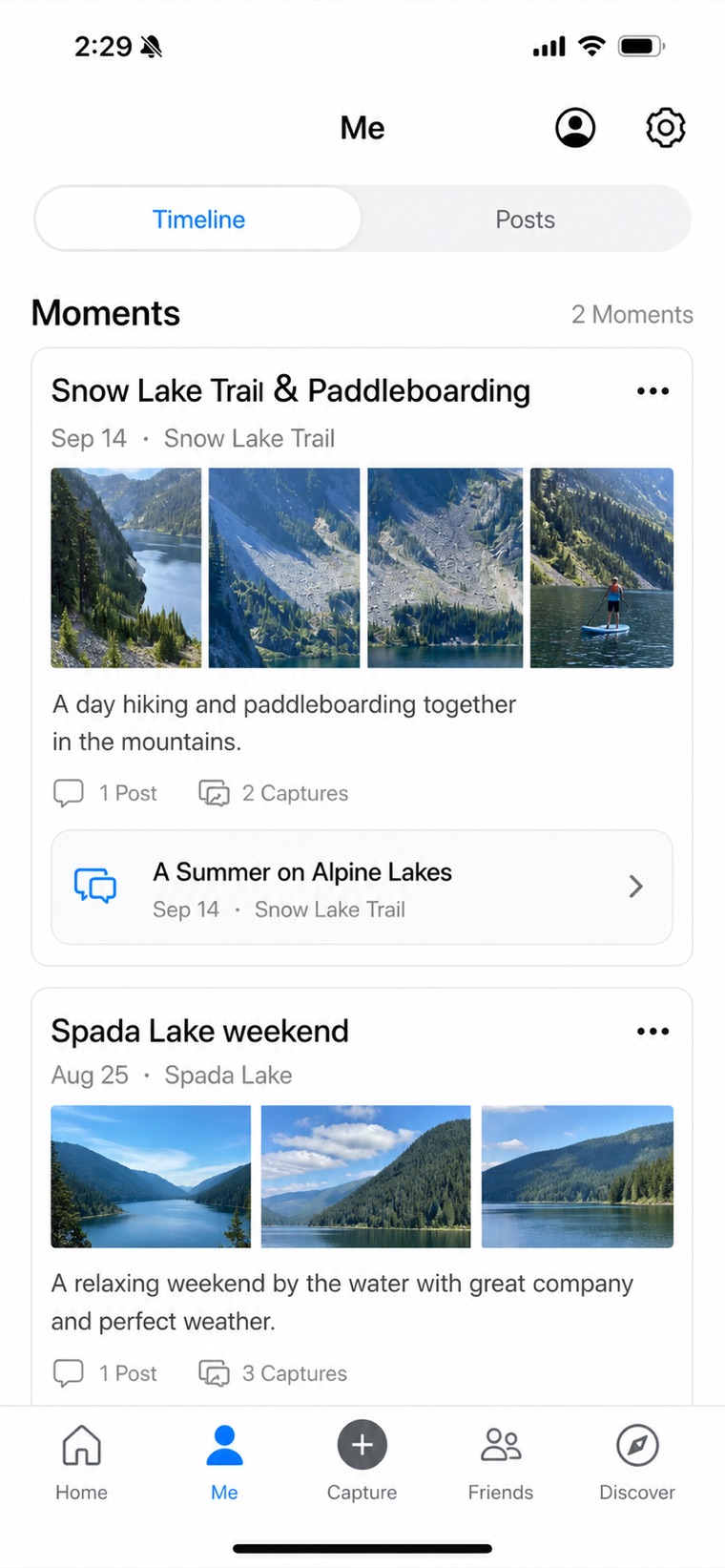
5Your timeline keeps the link
Moments keeps them in the order they happened, each with its media and description — and the post it produced right underneath. Anything you never posted stays exactly as private as it was.
-
 6
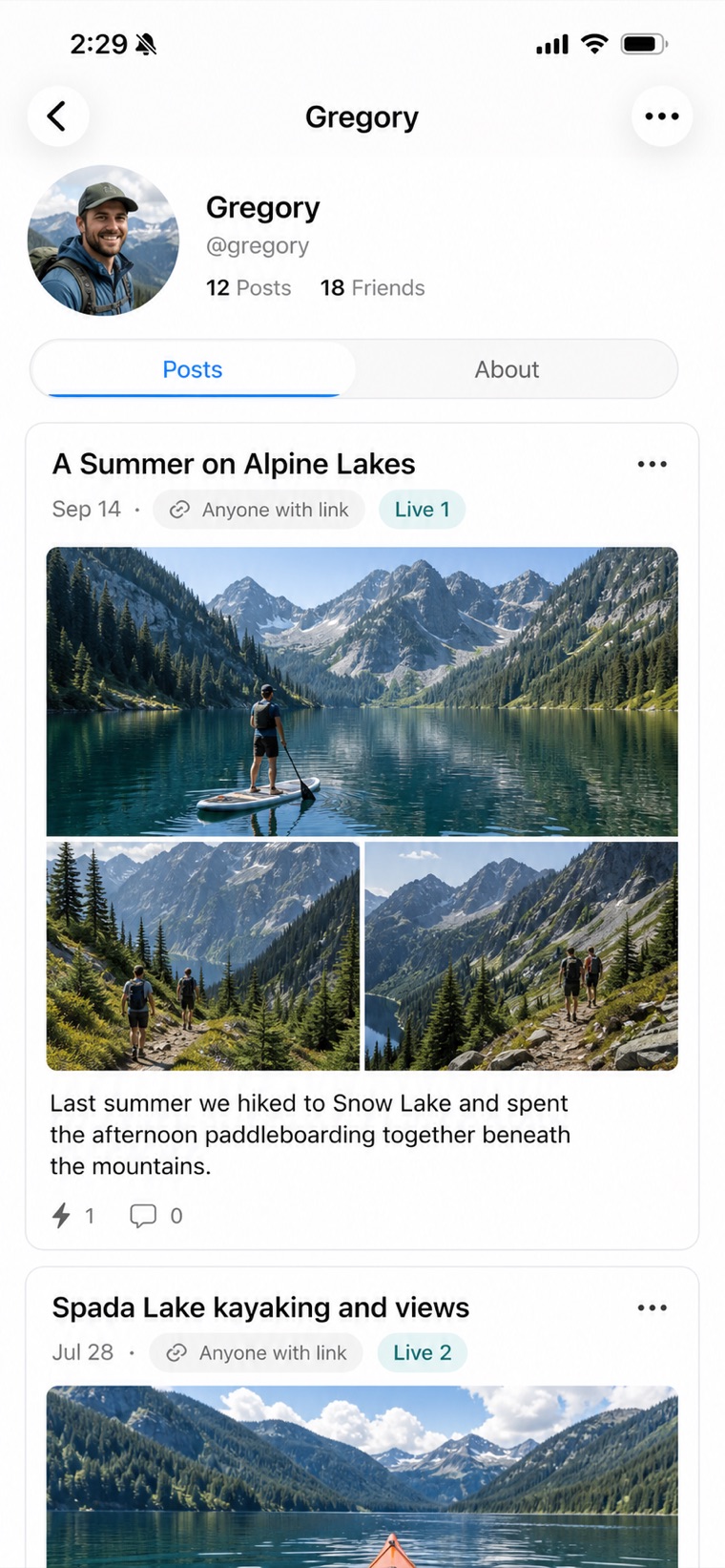
6Your profile shows the result
The post appears on your profile with its audience and the number of people who made it live. This is what someone sees when they arrive from a link you shared.
Chapter 4
One living link, everywhere
A LivePost is a single address. The same link opens the app when it is installed and a safe web view when it is not, and it always shows the current version of the post — so a correction never means sending a second link.
-
7
Check it before you send
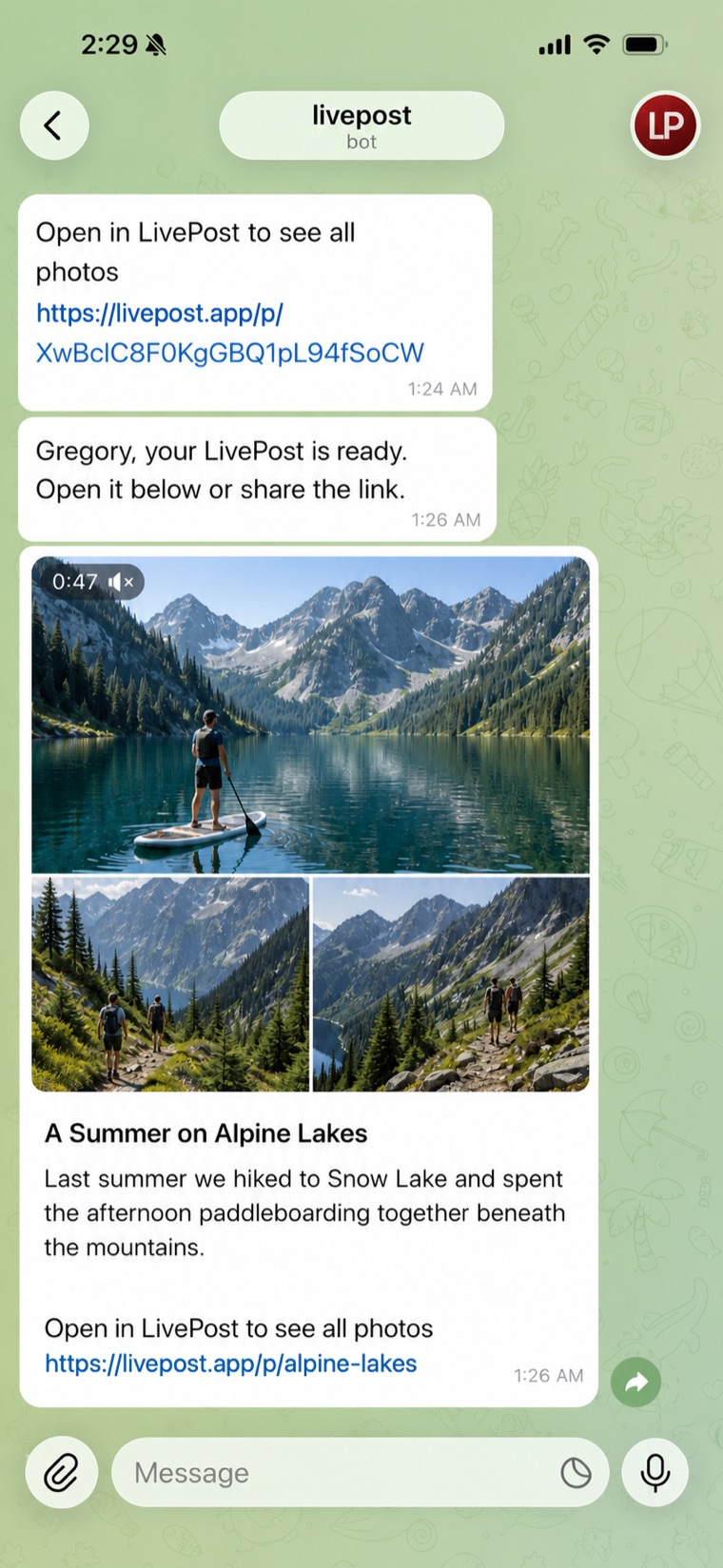
Copy the link from the post itself and open Preview to see exactly what a viewer gets, including the story video LivePost assembles from the media.
-
 8
8Send it in a message
Share the link through Telegram, Messages, email or anywhere else. The people you send it to see the media and the description straight away, without installing anything.
-
 9
9It works in a browser too
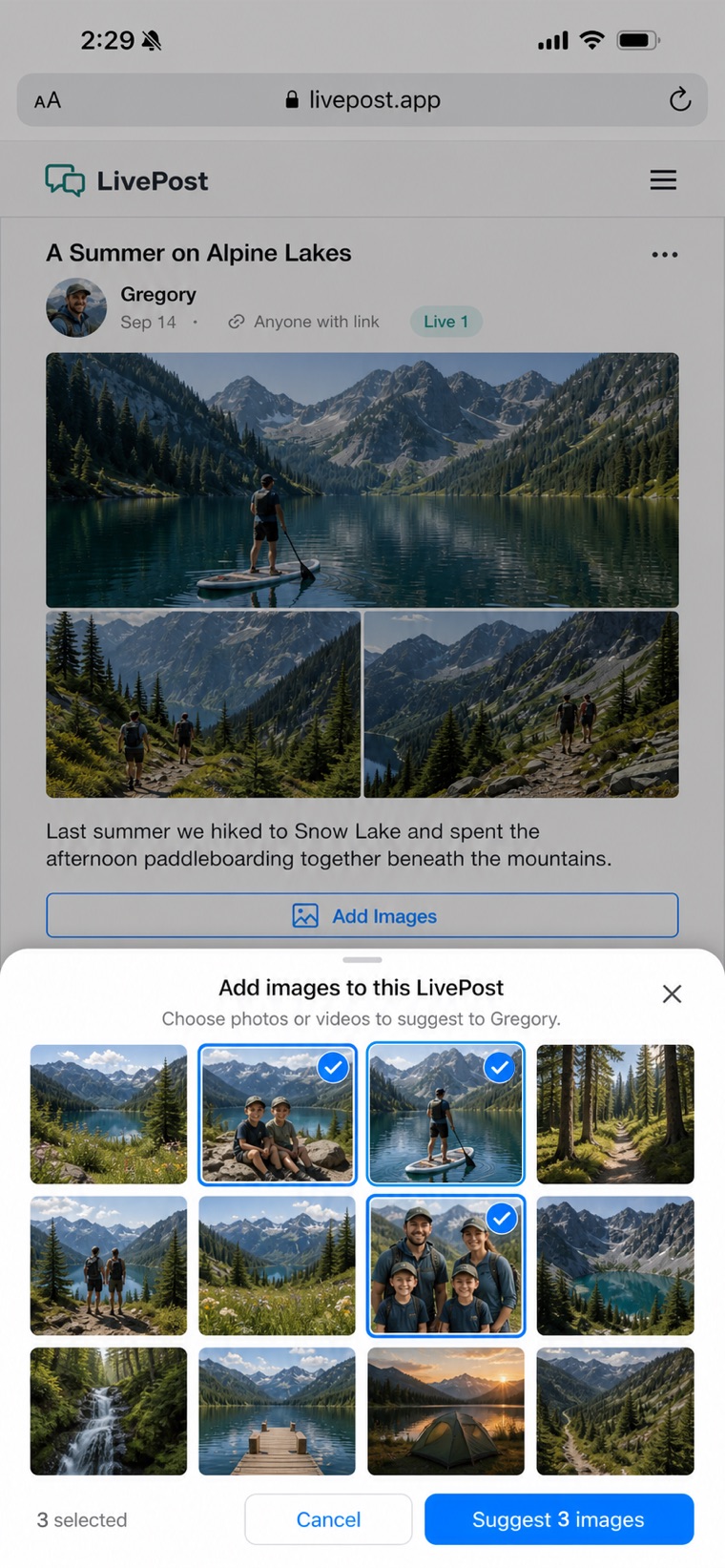
In a browser it reads like a post, not a download. If you allow it, the people who open it can suggest their own photos and videos right there — as proposals, not additions.
Chapter 5
The story keeps growing after you share it
Most memories belong to more than one person. A LivePost can take in what others contribute and can be owned by several people, while what actually appears in it stays your decision.
-
 10
10You review what others suggest
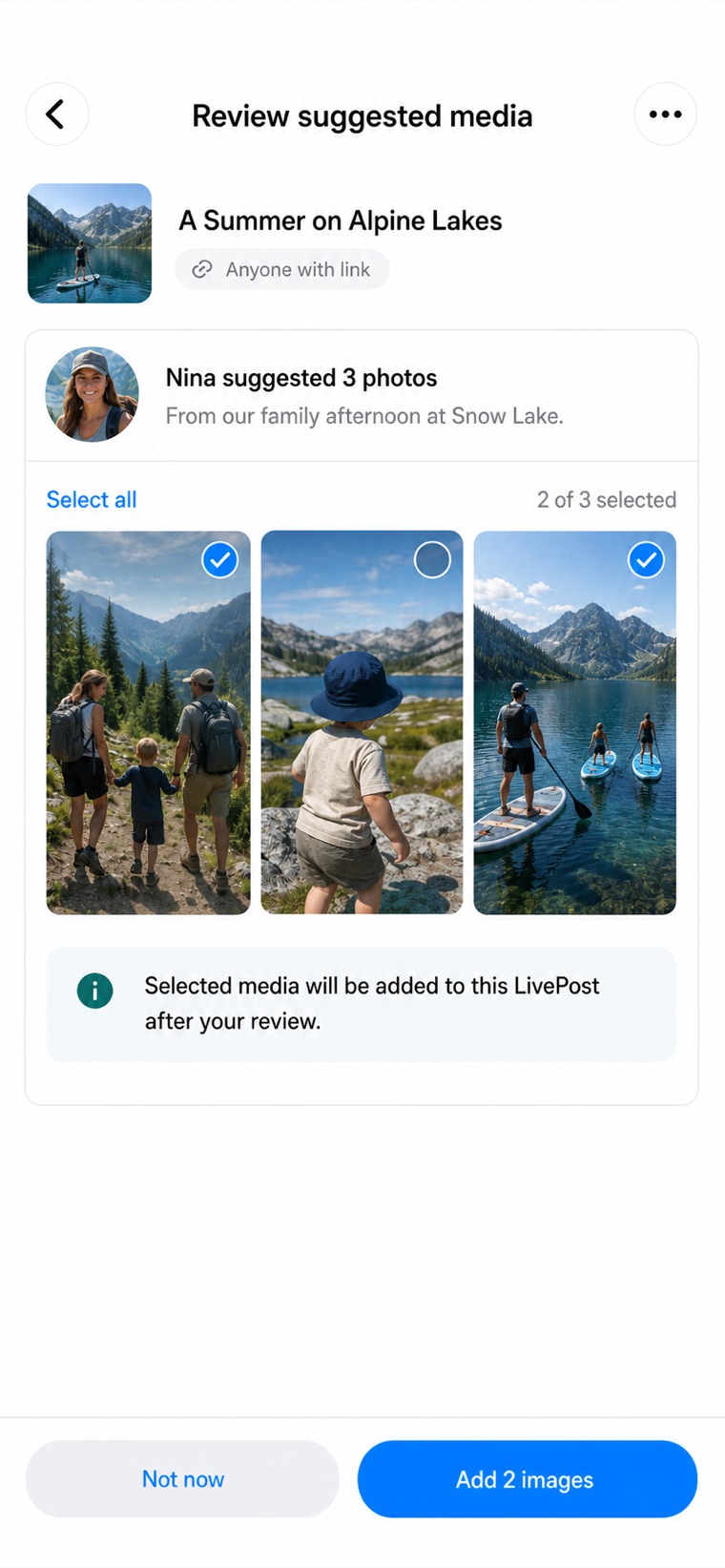
Suggested photos wait for your review. Take all of them, take some, or take none — nothing joins the post until you add it.
-
 11
11Share ownership, not just a link
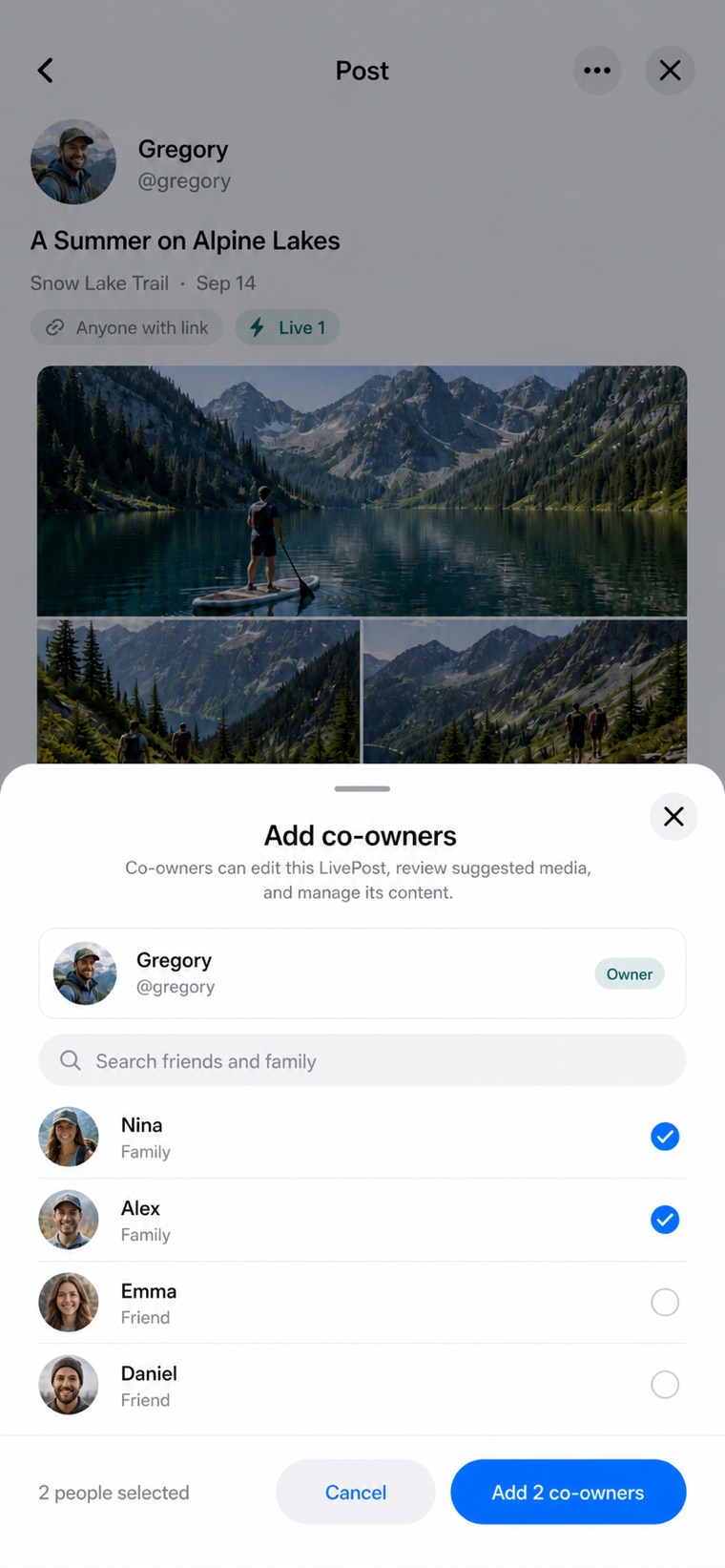
Add co-owners when the memory is genuinely shared. They can edit the post, review suggestions and manage its content exactly as you can.
-
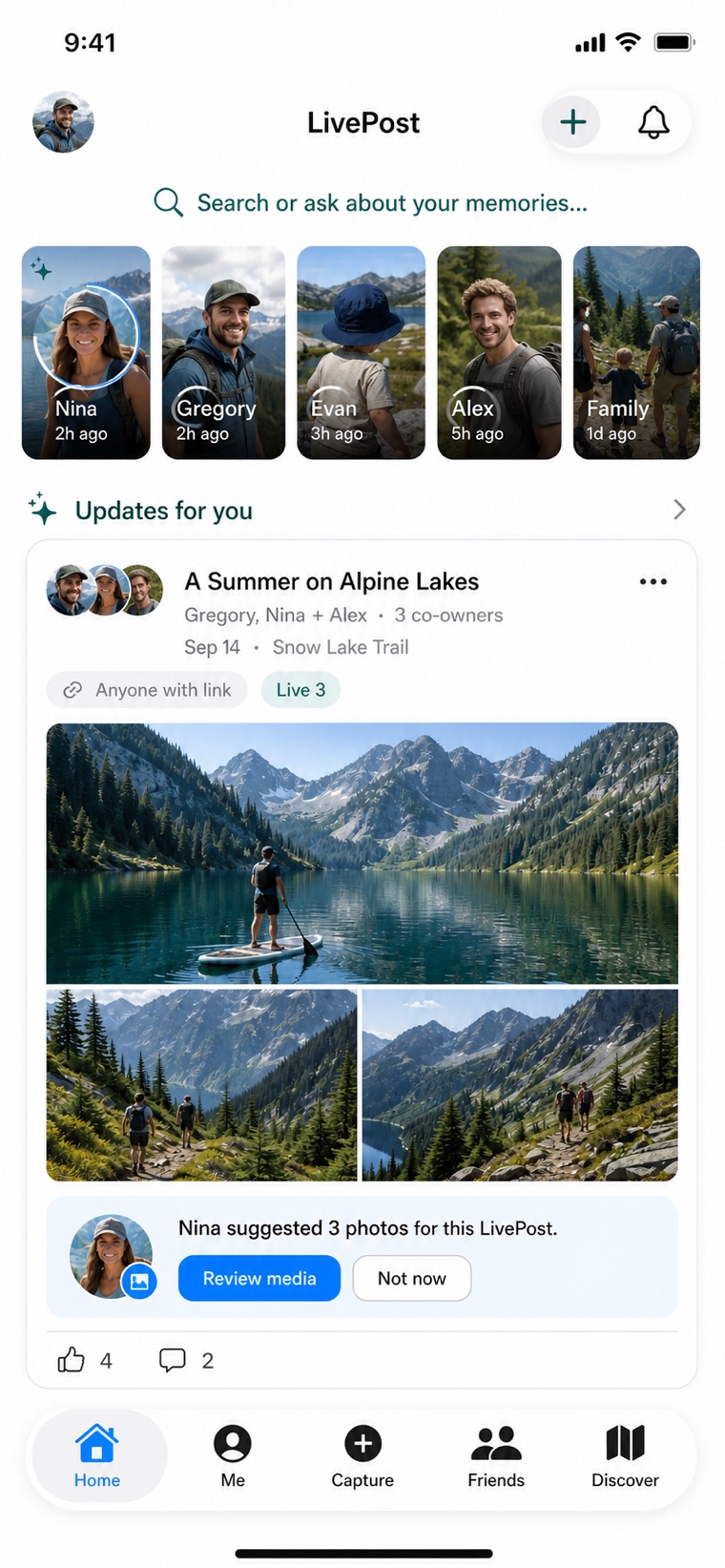 12
12Home shows what needs you
Back on Home the post carries its co-owners, and anything waiting — like photos someone suggested — is one tap away.
Chapter 6
The people and places behind your memories
LivePost keeps relationships the way you actually have them, gives shared spaces to the people who publish together, and can show you where those memories happened.
-
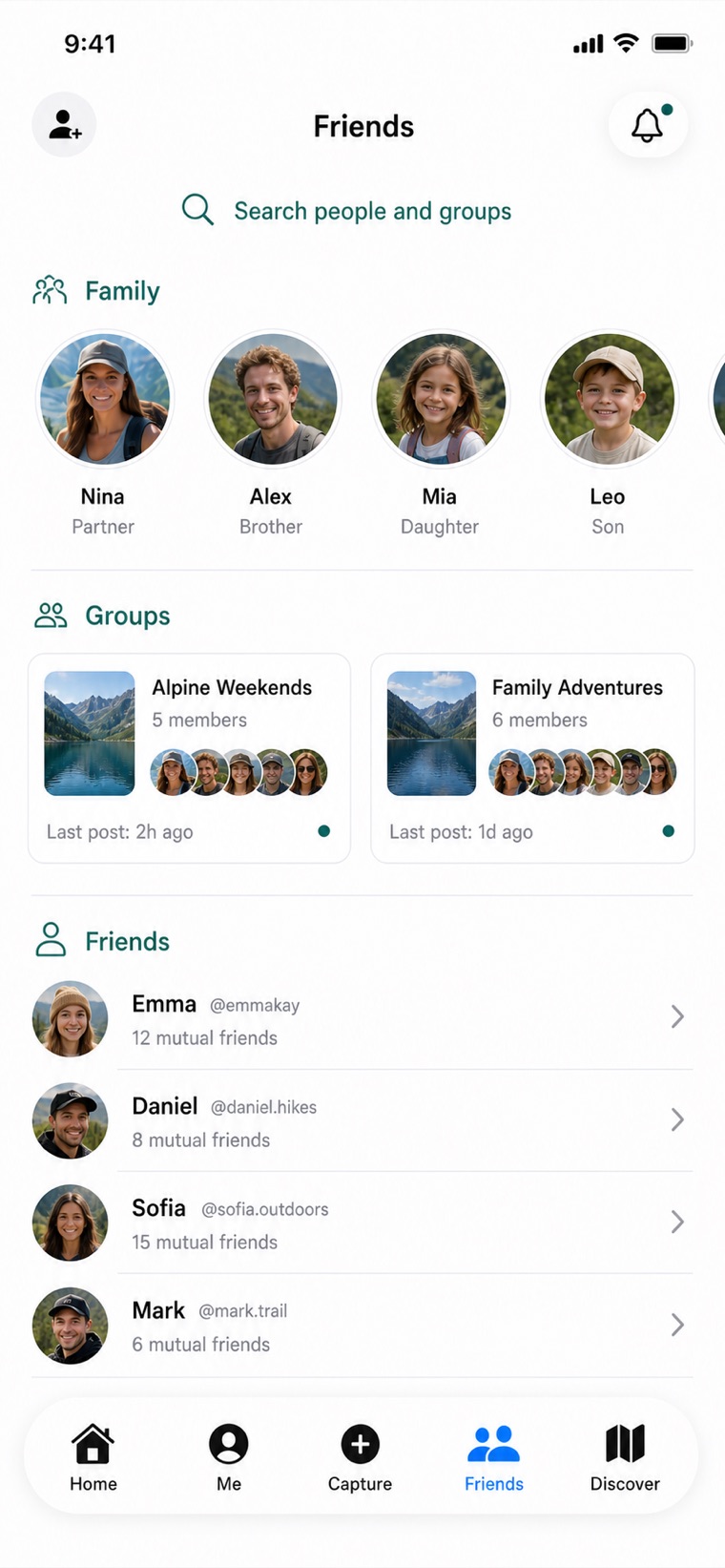 13
13Family, groups and friends
Family and Friends describe your relationships. Groups are shared spaces you create for people who organize and publish together. What someone can open depends on each post’s access setting, direct shares and active Group membership.
-
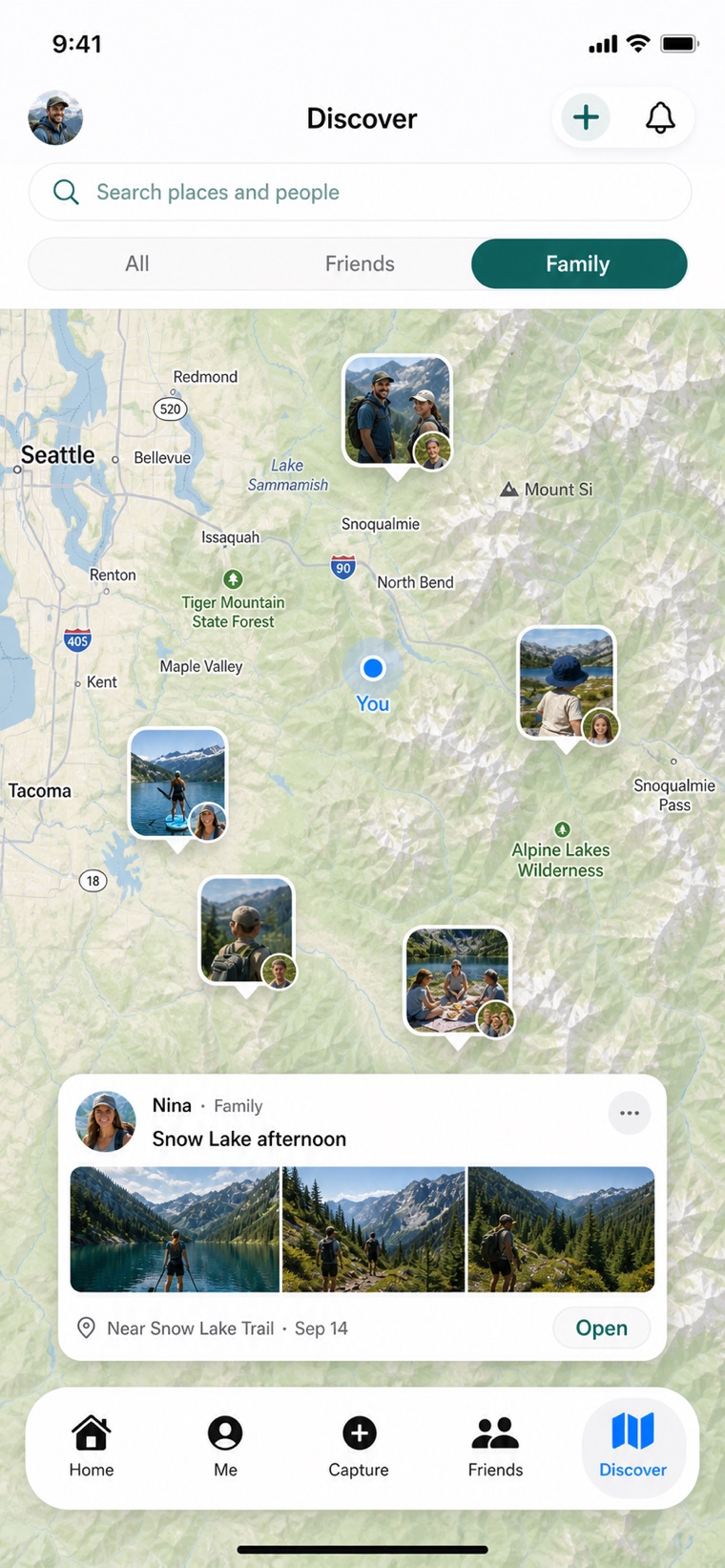 14
14See where it happened
Switch the map to Family and your memories appear next to the ones your family shared — the same trail, the same lake, seen through someone else's eyes.
Chapter 7
Ask your own memories anything
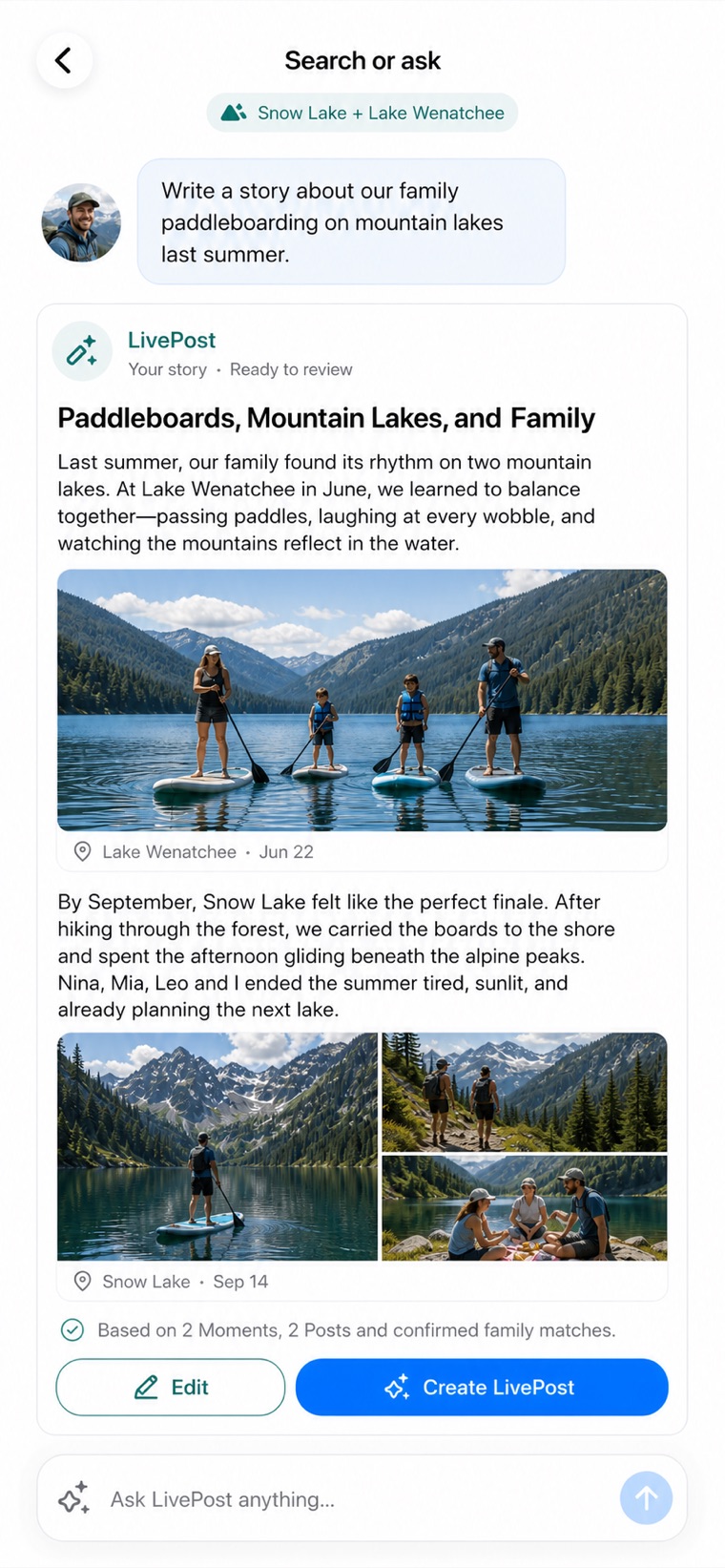
Everything you organized becomes searchable in plain language. Ask a question, narrow the answer, and let LivePost write the story — which brings you right back to a post you can share.
-
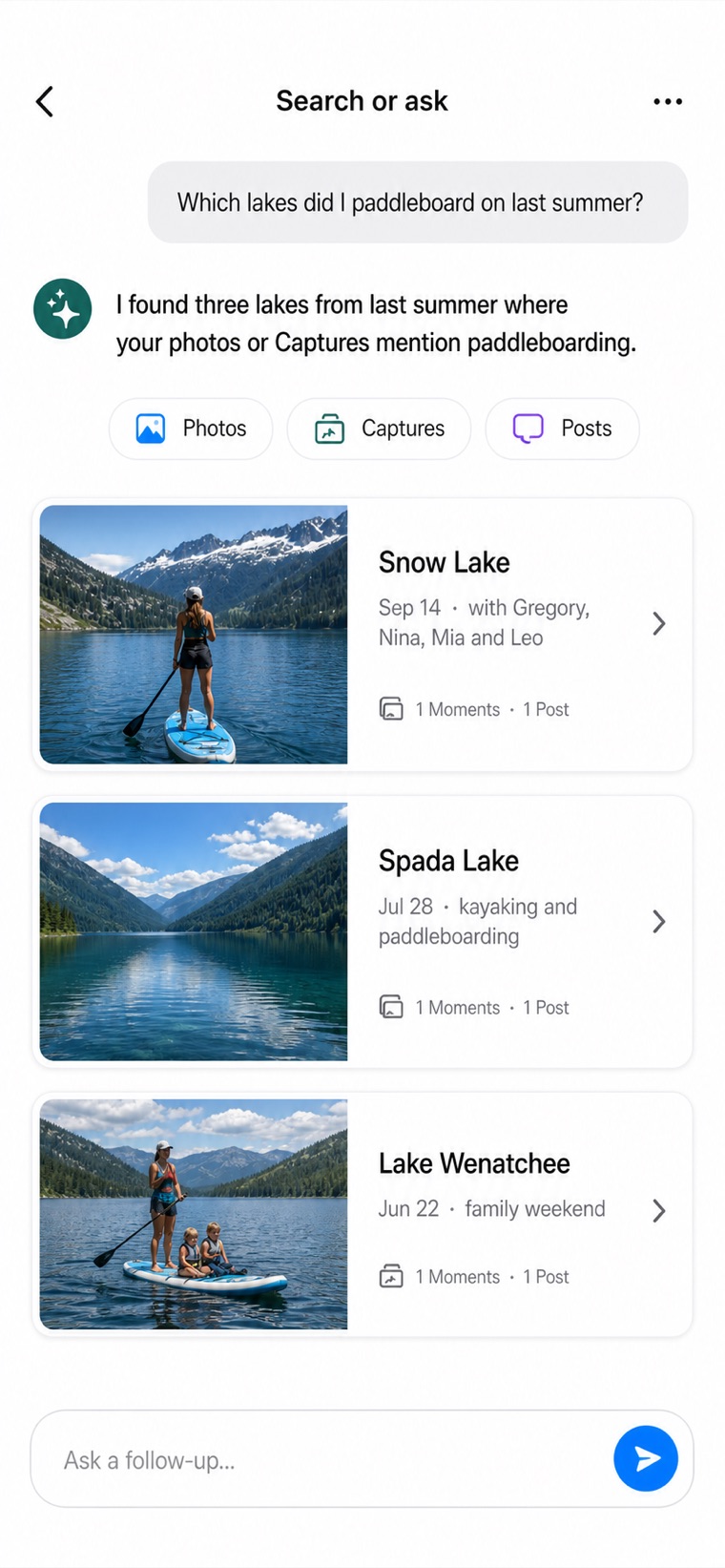 15
15Ask in your own words
“Which lakes did I paddleboard on last summer?” LivePost answers from your own photos, Captures and posts, and shows you which of them the answer came from.
-
 16
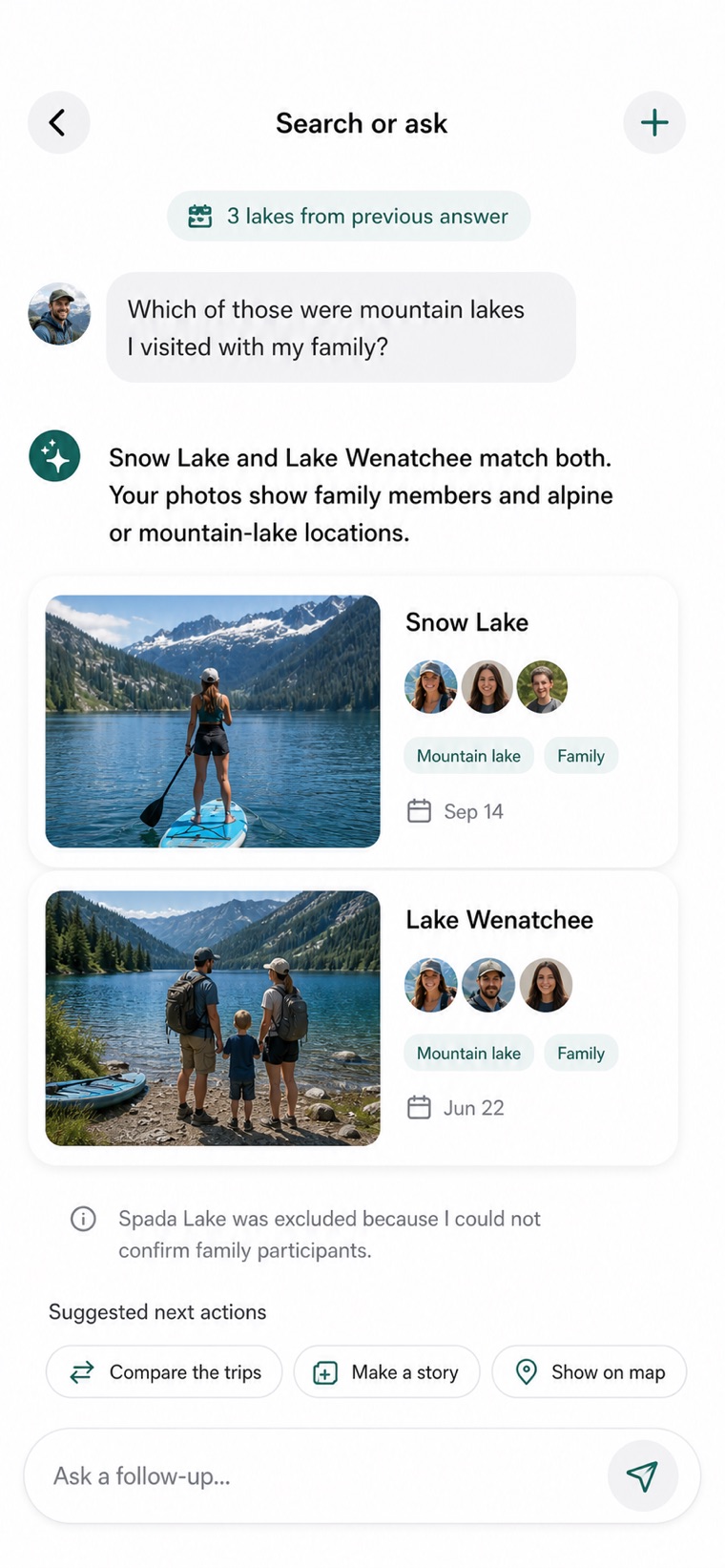
16Narrow it down
Keep going: “Which of those were mountain lakes I visited with my family?” The answer narrows, and LivePost says plainly when it left something out because it could not confirm it.
-
17
Turn the answer into a story
Ask for a story and LivePost writes one from those memories, with the photos in place and a note of what it used. Edit it, or create a LivePost from it — and the guide starts over.
Chapter 8
Use the current beta through TestFlight
LivePost is currently available to invited iPhone testers through Apple TestFlight. Request access with the Apple ID email where Apple should send your TestFlight invitation, and follow the steps we send you.
Once installed, use the separate LivePost Beta Bot in Telegram to report bugs or share product feedback.
What you will need
An iPhone, your Apple ID email, a LivePost account email, and consent to receive your personal Telegram beta-bot link.